
Fool Proof Tutorial: Activate MMS 100% On Firmware 3.0
I have noticed a lot of people having trouble with mms working. I have written fool proof instructions to get your mms 100% working if you are using an iPhone 3G or a 3GS. If the following does not get your mms working I suggest you call AT&T and make sure they didn’t forget about unblocking mms on your account. Of course you can tell them a little white lie when they ask you if your on firmware 3.1.
Note: If you do the following be sure to uninstall any tethering hack you have installed on your jailbroken iphone. Whether it be the mms/tethering hack from cydia or just the downloaded mobile config files from websites. Uninstall all of them and the reset your network settings before doing the following.
The download below is the 5.5 ipcc carrier settings update AT&T pushed out today to enable mms. The file has been edited by stealthbravo over at modmyi for us users who are wanting to stay on firmware 3.0. The edited file adds the internet tethering option and cellular data network settings along with the correct mms settings. The official unedited file adds mms but you don’t get the tethering option or the ability to edit your cellular data that is why if your like me, you will use this very helpful file that adds the extra features.
- Download Edited IPCC File HERE
After downloading the ipcc wait… You still have to do a few extra steps before using it because itunes doesn’t allow you to update your carrier settings using the ipcc file. Do the following exactly as stated:
- Exit itunes completely
Windows
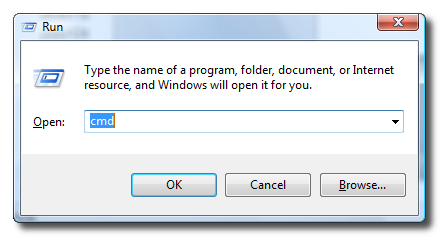
- Click on start > run > type in cmd and press enter, you should end up with something like this if you did it right:
- After press enter you will see a command prompt window pop up similar to this:
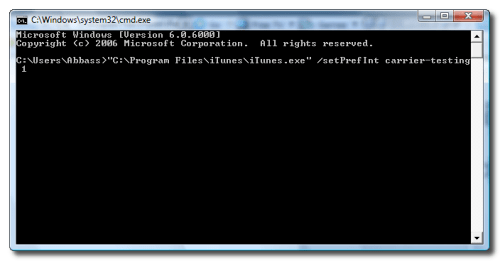
- Now don’t type anything in copy and paste the following line into the command prompt:
“C:\Program Files\iTunes\iTunes.exe” /setPrefInt carrier-testing 1
- Press enter after copying the above and nothing will happen, leave it as is
- Connect your iphone to the computer
- Open itunes from the start menu
- Select your iphone under the list of devices
- Hold SHIFT and CLICK CHECK FOR UPDATES. Navigate to the downloaded ipcc file you got and update your carrier settings
OSX
- Close Itunes Completely
- Open terminal
- Copy and past the following line into terminal
defaults write com.apple.iTunes carrier-testing -bool TRUE
- After copying the line to terminal press enter and nothing will happen just leave it as it is.
- Connect your iphone to your mac
- Open itunes
- Select your iphone from the device list on the left
- Hold OPTION and CLICK CHECK FOR UPDATES
- Choose the downloaded ipcc file and reboot your iPhone
Note: Before you say this doesn’t work go to settings > general > network > cellular data network and make sure you have these settings. Click the images to enlarge


Tags: 3gs, file, fool proof, ipcc, iphone, little white lie, mms settings
September 26th, 2009 at 9:57 am
Hey SoSly,
Going to bed now and working all wknd but maybe i can catch a quick reply on this b4 i go in tomorrow.
I got this reply on sinful…about my itunes not being in the default folder…mine is d:etc….so see if i am doing this right, bc this might be a problem many others have….here is the reply and my reply back….
HIM) What directory is your itunes.exe in? If you installed itunes into any directory other than the default one then you will need to change the command to indicate that. If you’re not sure, do a windows search for “itunes.exe”
Instead of:
“C:\Program Files\iTunes\iTunes.exe” /setPrefInt carrier-testing 1
You would use:
“\itunes.exe” /setprefint carrier-testing 1
ME) ok tried it again and still nothing…..my itunes is located here D:\Downloaded Program Updates\TYPES OF MEDIA PLAYERS
and i tried putting that in…but should my command prompt be in D: instead of C: like it is or does that matter?
This is what i put in.
Microsoft Windows XP [Version 5.1.2600]
(C) Copyright 1985-2001 Microsoft Corp.
C:\Documents and Settings\HOAG>”D:\Downloaded Program Updates\TYPES OF MEDIA PLA
YERS\iTunes.exe” /setPrefInt carrier-testing 1
The filename, directory name, or volume label syntax is incorrect.
C:\Documents and Settings\HOAG>
Thanks for any help
BRIKZ
September 26th, 2009 at 10:18 am
so what happens if you don’t uninstall the tethering hack and you update?
September 26th, 2009 at 11:54 am
I don’t know but I wanted to make sure there weren’t any conflicts.. you can go ahead and try it.
September 26th, 2009 at 2:24 pm
1. Open Command Prompt (it’s in Program Files -> Accessories).
iTunes command
2. Copy and paste the following command and press enter:
cd C:\Program Files\iTunes\
If you’re using a 64-bit operating system use the following command instead and press enter:
cd C:\Program Files (x86)\iTunes\
iTunes IPCC command
3. Copy and paste the following command in Command Prompt and press enter:
iTunes.exe /setPrefInt carrier-testing 1
Follow the instruction after this steps
September 26th, 2009 at 9:32 pm
SoSly,
So above is where my itunes is listed (D:\Downloaded Program Updates\TYPES OF MEDIA PLAYERS) ….is the command i put in the right one to point to it…..(”D:\Downloaded Program Updates\TYPES OF MEDIA PLA
YERS\iTunes.exe” /setPrefInt carrier-testing 1
running out of ideas here.
Thanks,
September 26th, 2009 at 9:35 pm
Yep thats correct
September 26th, 2009 at 9:54 pm
i still get the same errors….
September 26th, 2009 at 9:58 pm
Why don’t you just go do it on someone else computer you don’t have to sync and it will let you update your carrier settings without syncing your ipHone… Its better than going through all of this trouble
September 26th, 2009 at 9:58 pm
ok, i just tried copying my itunes.exe file into C: program files and when i did the command it said itunes was not installed correctly, so that didn’t work
September 26th, 2009 at 10:24 pm
This only works with at&t or any carreir please i want to know
September 26th, 2009 at 11:52 pm
This is only meant to work for AT&T. You can try this with other carriers but I don’t know why you would want to. Most of the other companies already offer mms
September 27th, 2009 at 5:09 am
Ya dey do bt i have ativated my mms but i cant c a camera icon in my mms
September 27th, 2009 at 8:35 am
Worked like a charm. Thanks very very much!
September 27th, 2009 at 7:23 pm
Is there anyway of installing this directly from the phone without having to use a PC?
September 27th, 2009 at 11:19 pm
I have actually noticed that the tethering part of my phone disappeared when I tried to use it but MMS still worked. Upon resetting the network and rebooting the phone the Cellular Data APN setting was auto-changed to “phone” from “wap.cingular”. Once that changed both MMS, tethering, voicemail and the phone itself are working flawlessly.
I don’t understand how or why that setting is working with “phone” inputted into that section. Any ideas?
September 29th, 2009 at 4:32 am
TO all that can’t get the command to work in Terminal try this: I still can’t get the camera to show but at least i am one step closer.
well, i finally got the command to go through ( TO any with this problem) either reinstall or upgrade iTunes to 9.0.1 and make sure it gets installed to C: Program files\itunes, the default folder. Then make sure your directory in terminal is C: only (mine had C:\documents and settings\username (which is the default for my computer), so i changed it by inputting the command cd c:\ and that changed it to C:\>. Now still cutting and pasting the whole command all at once did not work, so i only typed in (as nightcrawler suggests: BIG THANKS NIGHTCRAWLER: cd C:\Program Files\iTunes\ hit enter and then type in— iTunes.exe /setPrefInt carrier-testing 1. It should do nothing but when i went to itunes it let me choose ipcc file so i am past this step.